
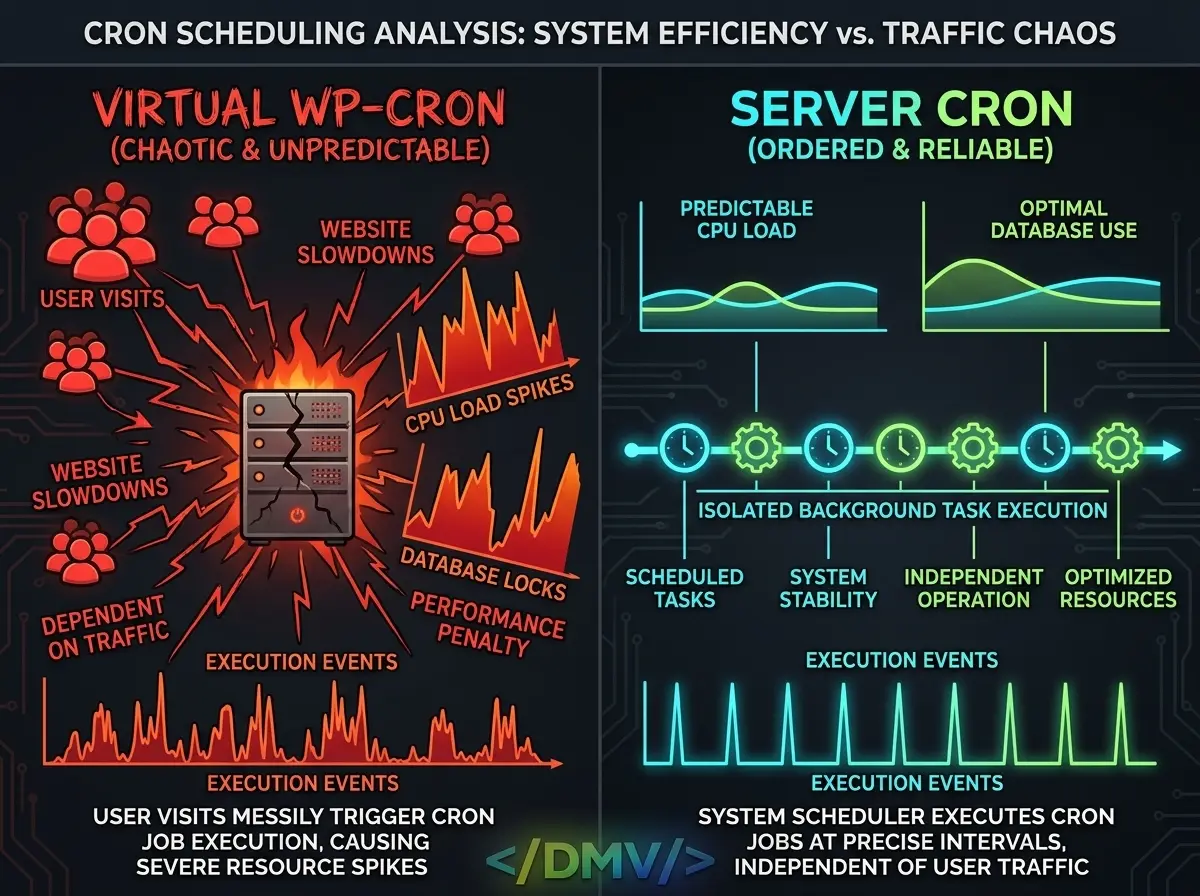
A WordPress server cron job is an automated, system-level scheduled task that executes your website’s background processes at exact time intervals, independent of user traffic. Out of the box, WordPress relies on a “virtual” cron system (WP-Cron) that only triggers when a user visits a page. This virtual system is fundamentally flawed for production environments. On high-traffic sites, it causes race conditions and massive CPU spikes as multiple visits attempt to trigger tasks simultaneously. On low-traffic sites, scheduled tasks—like publishing posts, sending emails, or running database backups—fail to execute on time because no visitors are triggering the system.
To achieve true backend scaling and server optimization, you must disable the default virtual WP-Cron and transition to a reliable, server-level execution method.
The Flaws of Virtual WP-Cron
Understanding why WP-Cron fails at scale requires looking at how WordPress processes page requests. Every time a browser loads a page on a standard WordPress installation, the core software checks the database to see if any scheduled tasks are due.
If tasks are pending, WordPress attempts to execute them during that page load.
-
The High-Traffic Problem: If your site receives a massive surge in traffic, hundreds of concurrent visitors might trigger the exact same WP-Cron check simultaneously. This forces your server to spawn multiple redundant PHP workers, rapidly exhausting CPU and RAM, which leads to slow page load times or 502 Bad Gateway errors.
-
The Low-Traffic Problem: Conversely, if your site has low traffic periods—such as the middle of the night—a post scheduled to publish at 2:00 AM will not actually go live until the first visitor arrives at 6:00 AM to trigger the WP-Cron script.
Key insight: A true system cron job separates background processing from the user experience, ensuring that front-end page speed is never degraded by back-end maintenance tasks.
The Execution: Setting Up a WordPress Server Cron Job
Fixing this architectural bottleneck requires a strict two-step protocol. You must first sever the tie between page loads and cron execution, and then configure your server infrastructure to ping the cron file on a strict schedule.
Step 1: Disable the Virtual WP-Cron
To stop WordPress from executing background tasks during active user visits, you must edit your site’s core configuration file.
Access your server via SFTP or SSH, locate the wp-config.php file in the root directory, and open it in a text editor. Scroll down to the line that says /* That's all, stop editing! Happy publishing. */ and add the following constant directly above it:
PHP
Once saved, WordPress will no longer automatically check for cron events on page loads. If you stop here, your scheduled tasks will never run. You must proceed to Step 2 immediately.
Step 2: Map the Server-Level Cron Job
Now that the virtual system is disabled, you must instruct your server operating system to trigger the wp-cron.php file at exact, predictable intervals—typically every 5 minutes. The execution method depends on your hosting architecture.
Method A: Using cPanel
If you are managing your server via cPanel:
-
Navigate to the Advanced section and click on Cron Jobs.
-
Under the “Add New Cron Job” section, set the Common Settings dropdown to “Once Per 5 Minutes (
*/5 * * * *)”. -
In the Command field, enter a
wgetorcurlstring that pings your specific domain:
Bash
(Note: Replaceyourdomain.comwith your actual website URL. The>/dev/null 2>&1snippet prevents the server from sending you an email notification every 5 minutes.)
Method B: Using Linux Crontab (SSH)
For dedicated nodes or VPS environments where you have root SSH access:
-
Open your terminal and type
crontab -eto edit the server’s cron file. -
Add the following command to execute the file directly via PHP, which is often faster and more secure than executing an HTTP request via
wget:
Bash
(Ensure the directory path matches your exact server root.)
Method C: Using Cloudflare Workers
If your WordPress server is locked down and blocks external HTTP loops, or if you want to offload the trigger mechanism entirely to the edge, you can use a Cloudflare Worker or an external service like Cron-job.org to send an HTTP GET request to [https://yourdomain.com/wp-cron.php?doing_wp_cron](https://yourdomain.com/wp-cron.php?doing_wp_cron) every 5 minutes.
Frequently Asked Questions
[lux_faq htag="h3" open="first" style="card"]
Q:Why should I disable the default WP-Cron?
A:Disabling the default virtual WP-Cron prevents scheduled tasks from executing during active user visits. This eliminates random server lag for your visitors and ensures your background scripts execute on strict, predictable server-time intervals.
Q:What is a WordPress server cron job?
A:A WordPress server cron job is a system-level command configured in your hosting environment (like Linux crontab or cPanel) that triggers the execution of scheduled background tasks at exact times, entirely independent of whether users are actively visiting your website.
Q:How often should a server cron job run for WordPress?
A:For the vast majority of enterprise and standard WordPress environments, triggering the server cron job every 5 minutes (*/5 * * * *) provides the perfect balance. It ensures posts publish on time and background tasks clear quickly without unnecessarily overloading the server CPU.
Q:Will disabling WP-Cron break WooCommerce?
A:No, but it requires that you immediately set up a true server-side cron job. WooCommerce relies heavily on scheduled tasks to process subscription renewals, send transactional emails, and update database transients. If you disable WP-Cron without setting up a server cron, these critical commerce functions will stop working.
Q:Can I use WP-CLI to run my WordPress server cron job?
A:Yes. If your hosting environment supports the WordPress Command Line Interface (WP-CLI), triggering the cron via CLI is highly efficient. Instead of an HTTP request, your crontab command would look like this: */5 * * * * cd /var/www/[yourdomain.com/public_html](https://yourdomain.com/public_html) && wp cron event run --due-now > /dev/null 2>&1.
[/lux_faq]
Achieving Predictable Backend Scaling
Relying on user traffic to trigger critical database maintenance and publishing schedules is a legacy design that has no place in modern web architecture. By declaring DISABLE_WP_CRON and configuring a dedicated WordPress server cron job, you stabilize your CPU utilization, guarantee precise task execution, and ensure your origin server remains focused entirely on delivering fast page loads to your visitors.
